Measure a PDF From Any Corner: Change the Ruler Origin (0,0)
Most screens start at the top left, but a lot of print and CAD work measures from the bottom left, and some from the right. Rather than doing mental subtraction, move the origin.
Set the origin
- Open a PDF in PdfRuler.
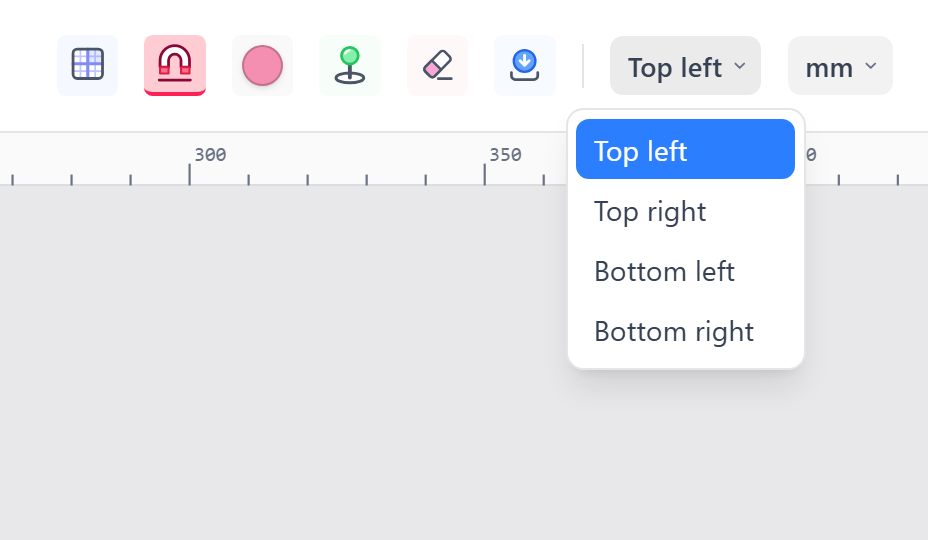
- Open the corner menu next to the unit menu and pick Top left, Top right, Bottom left or Bottom right.
What changes
- The two rulers move to the sides of the chosen corner and count up from it.
- The X/Y readout, cursor guides and point labels are all measured from that corner.
- The grid spacing and guide readouts follow the same origin.
What does not
Distances between two points are the same from every corner, because they are differences. Everything is stored in PDF points from the top left and converted only for display, so switching never moves your points.
Changing origin with points on the page
Because the readouts would all change meaning, PdfRuler asks first ("Changing the origin clears all points.") and clears them if you confirm. With nothing placed, it just switches.
When to use each corner
- Top left: screen and web layouts.
- Bottom left: mathematical coordinates and many CAD and PDF-coordinate conventions.
- Top / bottom right: right-to-left layouts, or checking how far something sits from the right edge.
See also reading point coordinates.
Frequently asked questions
How do I make the bottom left corner 0,0?
Choose "Bottom left" from the corner menu in the toolbar. The rulers and X/Y readout then count from the bottom left.
Does changing the origin change distances?
No. Distances are origin-independent; only X/Y positions and ruler values change.
Why were my points cleared when I changed the origin?
Their labels would otherwise change meaning, so PdfRuler asks to clear them first. You can cancel and keep them.
