How to Measure the Distance Between Two Points in a PDF
The quickest way to measure anything in a PDF is to click its two ends. The line that appears is labelled with the exact length in your unit.
Place a pair of points
- Open the PDF in PdfRuler and pick a unit.
- Click the first end. A dot appears and a dotted line follows your cursor with its live length.
- Click the second end. The line becomes solid and keeps its label.
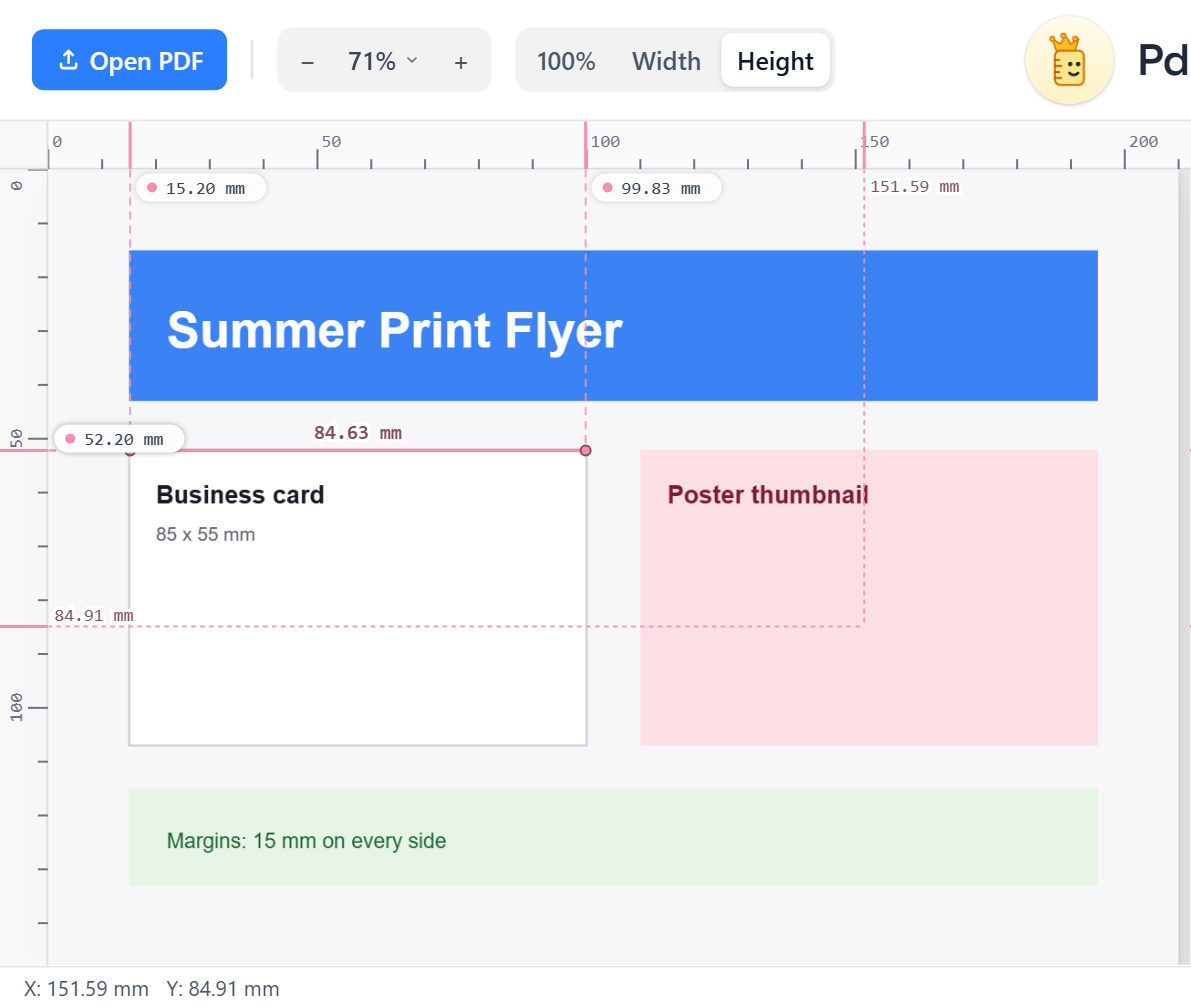
Points come in pairs
Points are paired 1-2, 3-4 and so on, so you can measure as many things as you like. Each point keeps the pastel colour that was selected when you placed it, so pairs are easy to tell apart.
Read more than the length
Click a line to open its info card: length, how far it runs across and down, the angle, and the start and end coordinates. Click a point for its X and Y from your chosen origin corner.
Fix or remove
- Drag a point to move it; its line follows. Drag a line to move both ends.
- Right-click a point, line or guide to delete it at once.
- Press Backspace or Ctrl+Z to undo the last point.
Make it precise
Zoom in with Ctrl + scroll before clicking; precision follows zoom. With snap on, points lock onto the nearest edge. Hold Shift for a perfectly horizontal or vertical line, covered in Shift-align. For the full feature tour read placing a point and reading its coordinates.
Frequently asked questions
How do I measure the distance between two points on a PDF?
Click the first point, then the second, in PdfRuler. The line between them is labelled with its length in your selected unit.
Can I measure diagonal distances?
Yes. Any two points work; the info card also lists the horizontal and vertical components and the angle.
How do I delete a measurement?
Right-click it to delete at once, or click it and choose Delete in the card. The eraser icon clears everything.
