Shift-Align: Measure Perfectly Horizontal and Vertical Lines on a PDF
If you measure a width and your two clicks are a pixel apart vertically, the line is slightly tilted and its length is a hair too long. Shift-align removes that error.
How to use it
- Click the first point.
- Move toward the second point and hold Shift.
- The cursor locks to the first point's horizontal or vertical axis, whichever is nearer. The preview line is perfectly level or plumb.
- Click to place the second point.
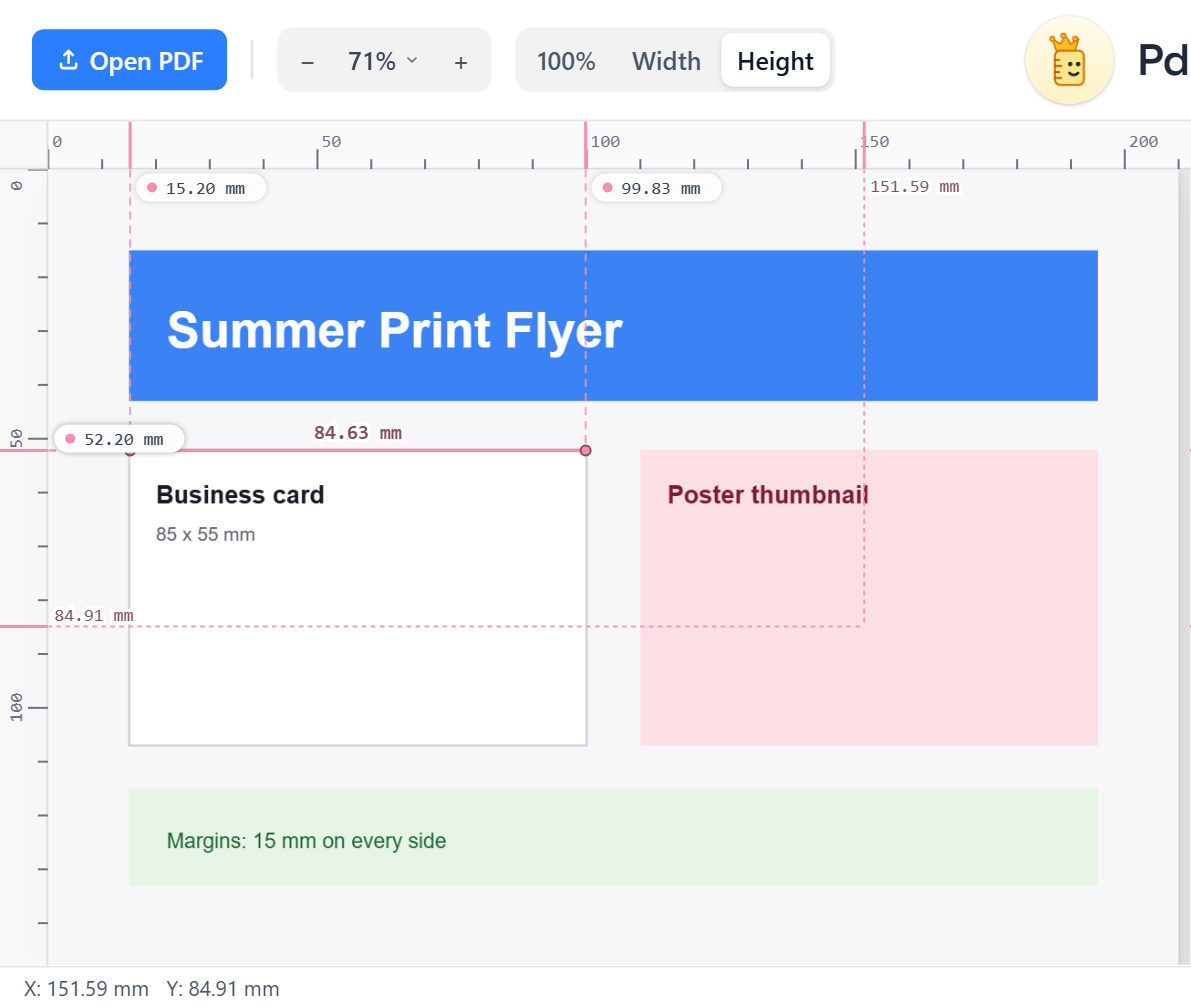
The free axis still snaps
Only one axis is locked. The other still snaps to the nearest edge, so you get a straight line that also ends exactly on the content.
No mouse movement needed
Pressing or releasing Shift re-applies the lock instantly, even if the mouse is still, so you can place the point first and tap Shift afterwards to check.
When to use it
- Widths and heights of boxes, columns and images.
- Margins and gutters, which are only meaningful along an axis.
- Checking that two items are aligned: if both ends land on the same line, they are.
The complete measuring workflow is in measuring the distance between two points.
Frequently asked questions
How do I draw a straight line on a PDF to measure?
Place the first point, hold Shift and click the second. The line locks to a perfectly horizontal or vertical axis.
Does Shift lock to diagonals?
No. It locks to whichever of the horizontal or vertical axes is nearer, which is what you need for widths and heights.
Can I use Shift with snap?
Yes. Shift locks one axis and snap still adjusts the other to the nearest edge.
