Snap to Edges: Measure PDF Content Precisely Without a Steady Hand
Clicking an edge to the nearest pixel is fiddly, and a 0.3 mm error matters when you are checking a margin. Snap fixes that by pulling your cursor to the nearest edge of the content.
What snap does
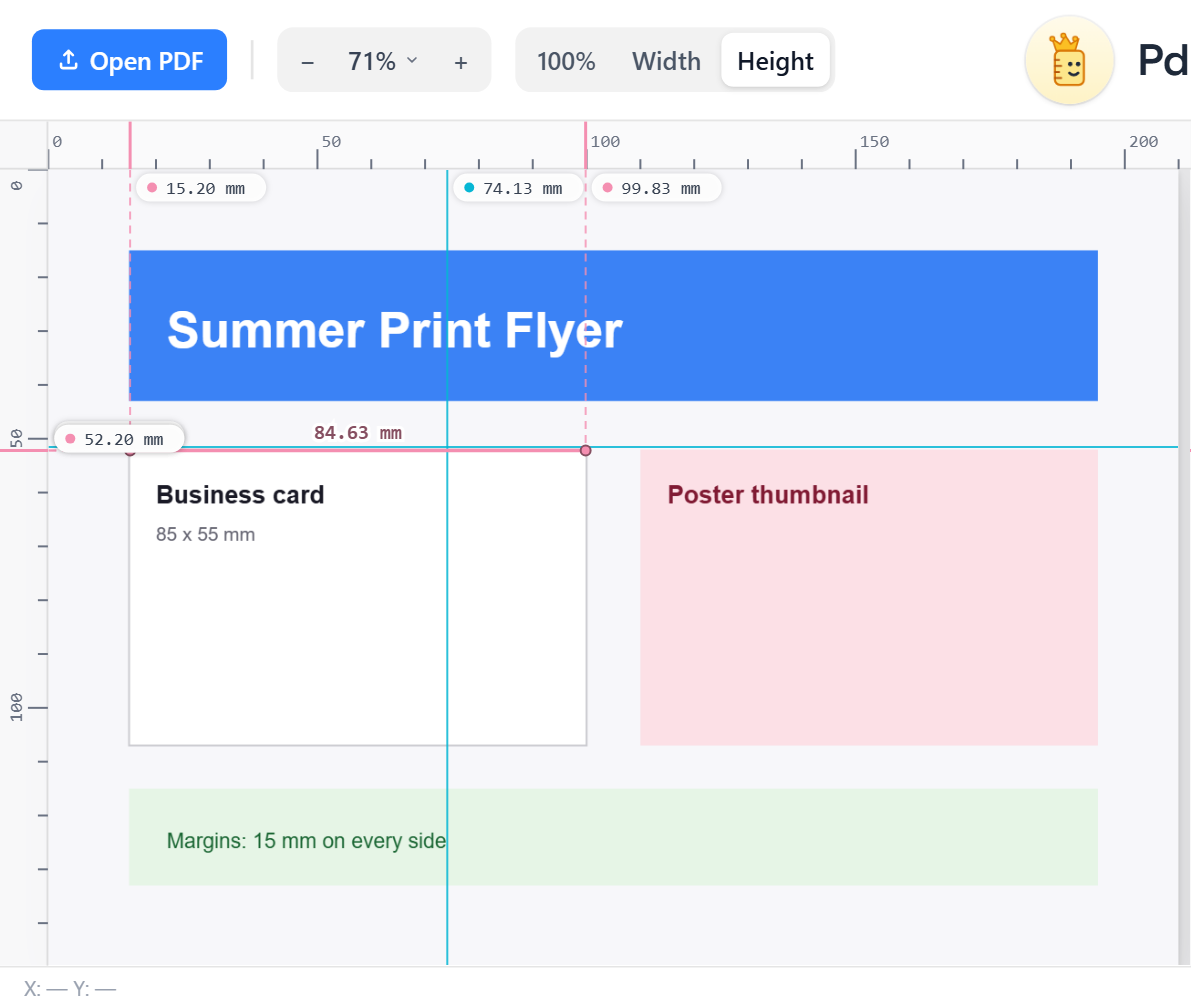
With the magnet button on (it is on by default), PdfRuler looks within a few pixels of the cursor for a sharp change in brightness on the rendered page: the edge of a box, a line, a letter, an image or the page border. If it finds one, the cursor locks to it and a ring appears. This works on each axis separately, so you can snap to a vertical edge while sliding freely along it.
What snaps
- The crosshair and the X/Y readout.
- Placed points and the dotted preview line.
- Guides you drag from the rulers (not when you drop one off the page to delete it).
- Points you drag around afterwards.
Get finer results
Snap works from the rendered pixels, so precision follows zoom. At 100% an edge is found to about 0.25 mm; zoom to 400% and it is far finer. See zooming without losing accuracy.
Turn it off when you need to
- Hold Alt to bypass snap for one click.
- Click the magnet to turn it off completely; the setting is remembered.
Snap needs a PDF open and, because it reads pixels, works on any content without parsing the file. For exact vector sizes use Auto-measure instead.
Frequently asked questions
How do I measure exactly on an edge?
Leave snap on and zoom in. The cursor locks to the nearest edge of text, lines, shapes or the page, and the readout shows that exact position.
How do I turn snap off temporarily?
Hold Alt while clicking or dragging. Click the magnet button to turn it off for good.
Does snap work on scanned PDFs?
Yes, because it reads the rendered page pixels, it snaps to any visible edge, including those in scanned images.
