Place Measurement Points Precisely With a Magnifier Loupe
Small details, like the end of a hairline or the corner of a crop mark, are hard to hit at 100% zoom. Zooming in fixes it but loses the overview. The loupe gives you both.
How to use the loupe
- Open the PDF in PdfRuler.
- Press L or click the Loupe button.
- Move over the page. A round lens follows the cursor showing the page 4x larger with a crosshair in the middle.
- Click when the crosshair sits on the spot you want.
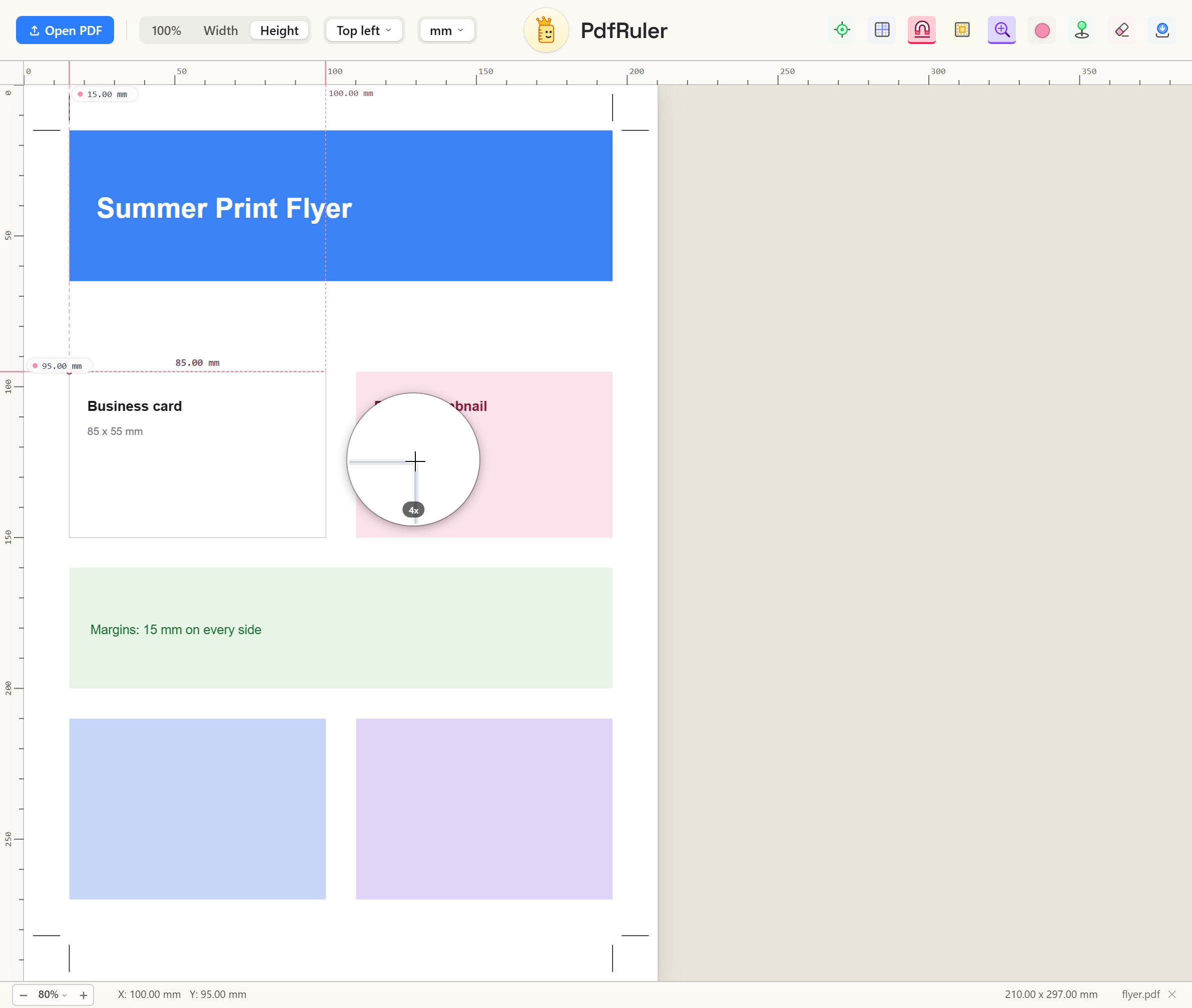
It shows where the point will land
The lens is centred on the point a click would place, so when Snap pulls the cursor onto an edge you can see it happen. Hold Alt to skip snapping and place freely.
The loupe is a view aid only. Measurements stay in PDF points and do not change with it. For the same detail in the page itself, zoom with Ctrl + scroll.
Frequently asked questions
How do I place a point more precisely in a PDF?
Turn on the loupe (press L). A 4x lens follows the cursor so you can line up the crosshair before you click.
Does the loupe change my measurements?
No. It only magnifies the view. All measurements are calculated in PDF points.
