How to Undo, Redo and See the History of Your PDF Measurements
Placed a point in the wrong spot, or erased everything by mistake? In PdfRuler every change to your measurements can be undone, redone, or reviewed in a history list.
Undo and redo
- Undo: press Ctrl + Z (Cmd + Z on a Mac) or click the undo arrow in the middle of the status bar.
- Redo: press Ctrl + Shift + Z or Ctrl + Y, or click the redo arrow next to it.
It covers points and lines, ruler guides, moving or deleting them, Auto-measure and Pick, and even Erase all. Dragging a point or guide counts as one step, however far you move it.
See the history
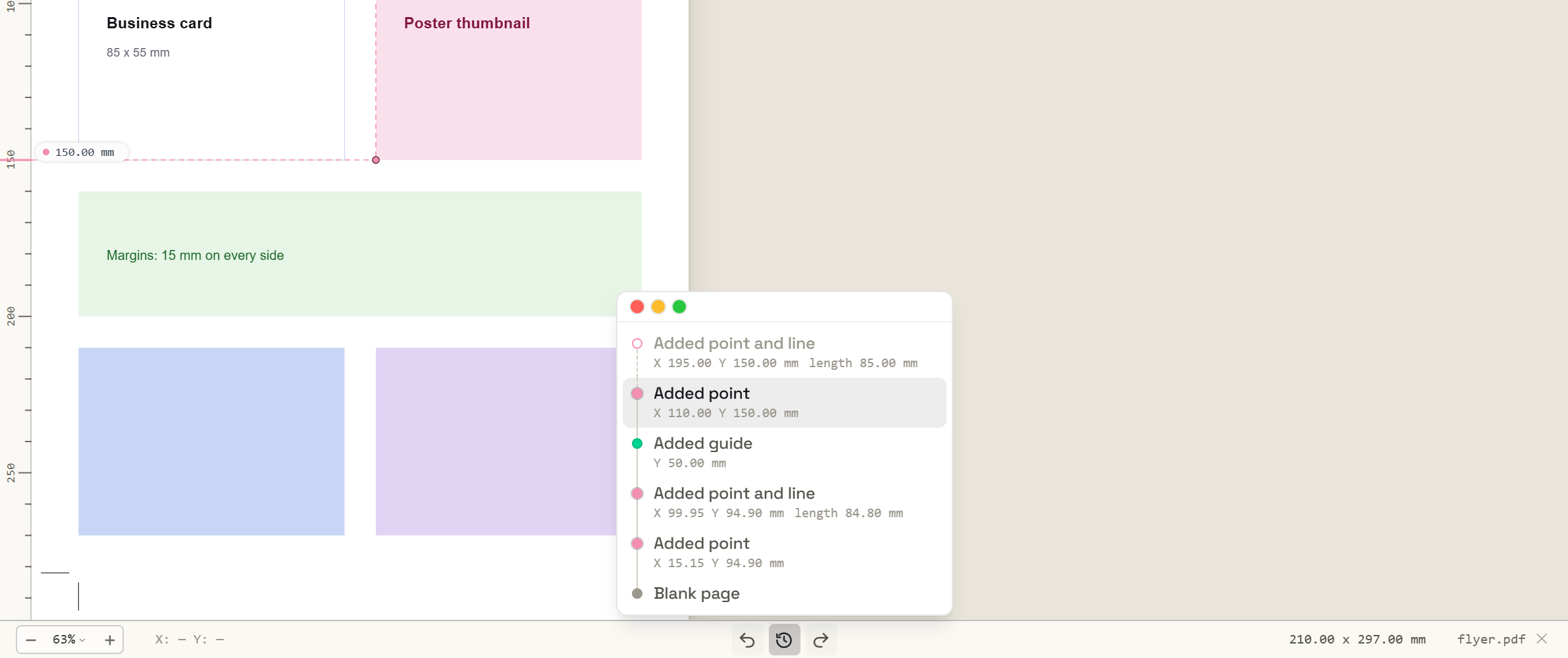
Click the clock icon between the undo and redo arrows to list every step on the current page, newest first, such as "Added point", "Moved line" or "Erased all". Click any step to jump straight back to how the page looked then. Steps after the one you are on are faded; they can still be redone until you make a new change.
Nothing is stored
History lives only in your browser's memory while the page is open. It is never saved or uploaded, and it clears when you change page or open another PDF, just like your points do. To keep a result, save a copy of the PDF with the measurements drawn on it.
Frequently asked questions
How do I undo a point in a PDF measuring tool?
Press Ctrl + Z (Cmd + Z on a Mac) in PdfRuler, or click the undo arrow in the status bar. Redo is Ctrl + Shift + Z or Ctrl + Y.
Can I undo Erase all?
Yes. Erase all is one step in the history, so Ctrl + Z brings every point, line and guide back.
Is my history saved?
No. It stays in memory only and clears when you change page, open another PDF or reload. Nothing is stored or uploaded.
