How to Measure One Box or Line in a PDF With One Click
Auto-measure labels every box on a page at once, which is great for a quick audit and noisy when you only care about one card, one logo or one crop mark. Pick measures just the shape you point at.
How to pick a shape
- Open your PDF in PdfRuler.
- Press P or click the Pick button (the green target) in the toolbar. It stays selected while it is on.
- Move over the page. The box or line under the cursor is outlined in green with its size.
- Click to measure it. A box gets its width and height, a line gets its length.
- Press Esc or click Pick again to go back to placing points.
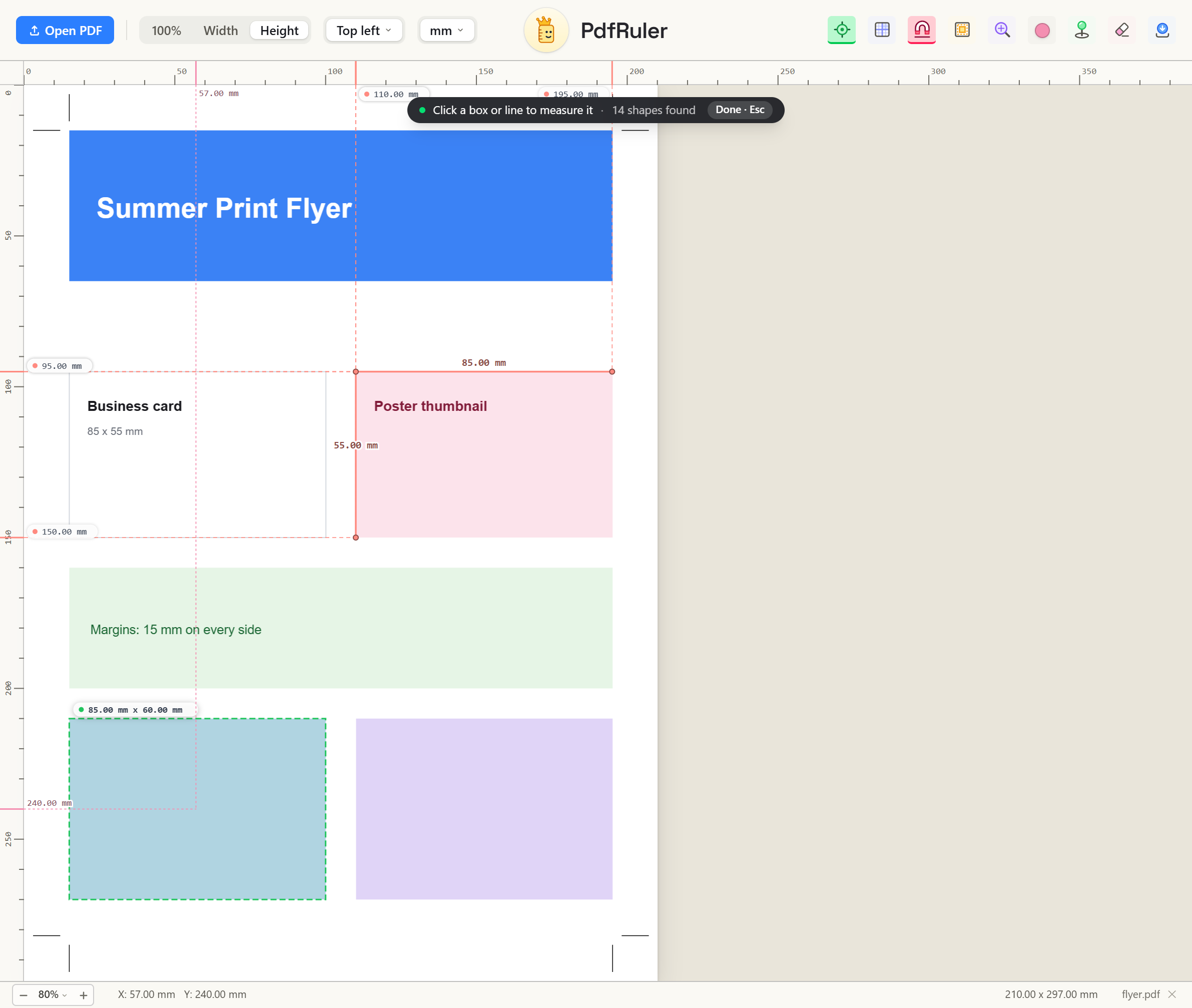
Exact sizes, not pixel guesses
Pick reads the page's drawing instructions, the same data Auto-measure uses, so a card drawn 61 x 91 mm reads 61 x 91 mm at any zoom. Where shapes overlap, the smallest box under the cursor wins. Lines win when the cursor is right on them.
Good to know
- While Pick is on, clicking empty page does nothing, so you cannot drop a stray point by accident.
- Picking a shape twice does not duplicate its measurement.
- Picked measurements behave like Auto-measure ones: drag, delete or save them as usual.
Prefer manual control? See how to measure a PDF online.
Frequently asked questions
How do I measure just one shape in a PDF?
Turn on Pick (press P), hover the box or line, and click it. PdfRuler measures that shape at its exact vector size.
Does Pick work on scanned PDFs?
No. It reads vector shapes and images placed on the page. A scan is one big image, so use two points instead.
How do I turn Pick off?
Press Esc or click the Pick button again.
