Check Vector PDF Dimensions Before Laser Cutting or CNC
A PDF exported from a design tool can be scaled by the export dialog without you noticing, and a laser cutter will faithfully cut whatever size the file says. Ten seconds of checking saves a sheet of material.
1. Check the page and the overall size
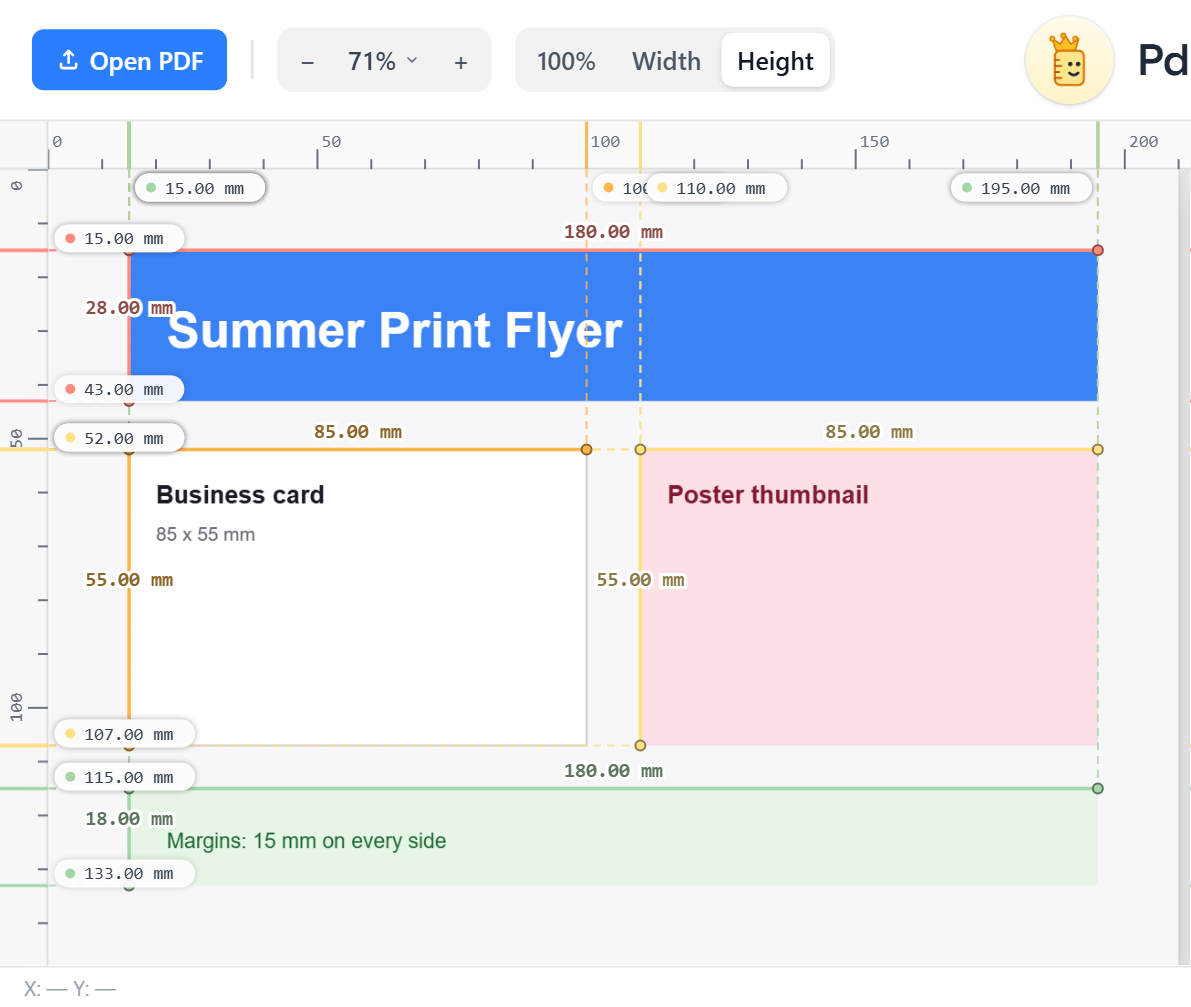
Open the file in PdfRuler and set the unit to mm. Read the page size. For a part that should be 120 x 80 mm, the page might be larger, but the shape must measure 120 x 80 mm. Press A to auto-measure every rectangle and straight line.
2. Check hole and slot positions
Use the bottom-left origin to read positions the way machines do, and click on a feature to read its X and Y. Turn on snap so points lock onto edges.
3. Check distances between features
Place a pair of points on two holes' edges to read the spacing. Hold Shift to keep the measurement perfectly horizontal or vertical, see Shift-align.
4. Check hairlines
Cut lines are usually hairline strokes. Auto-measure skips hairline-thin shapes, so for those use points and zoom in to confirm their ends.
What PdfRuler does not do
It does not read kerf, material thickness or tool paths. It tells you the true geometric size of the vector shapes, which is the first thing to confirm.
Frequently asked questions
How do I check if a vector PDF is the right size for cutting?
Open it in PdfRuler in mm, auto-measure the shapes and compare with your design size. Check the page size too, in case the export scaled the file.
Can I read hole positions in a PDF?
Yes. Click on a hole edge to read its X and Y from your chosen origin corner.
Does it work with DXF or SVG?
No. PdfRuler measures PDF files. Export your design as a PDF first.
