How to See Media, Crop, Bleed and Trim Boxes in a PDF
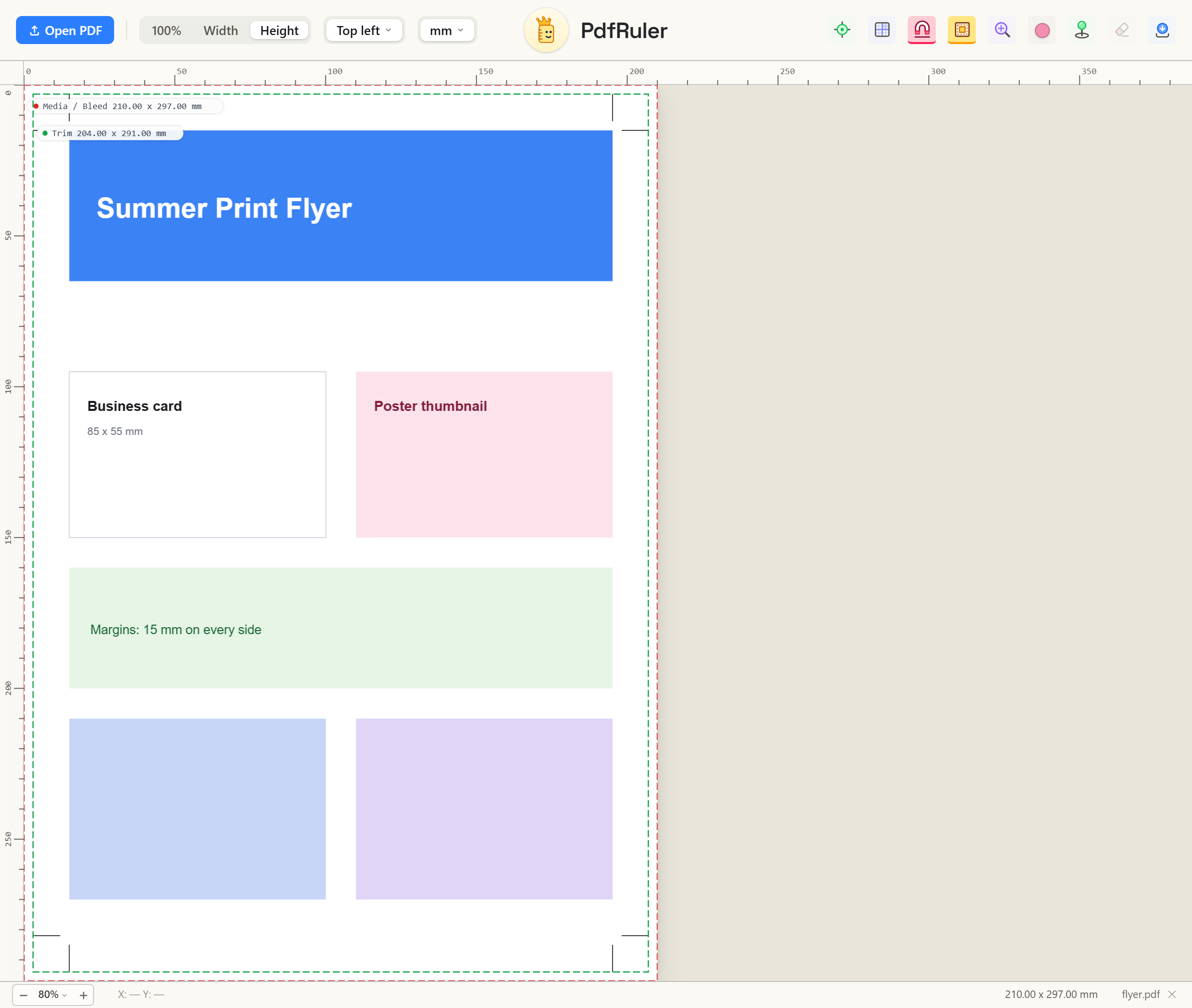
A print PDF carries more than one page size. Besides the sheet itself, it can declare where to trim, how much bleed there is and which area holds the artwork. Those are the page boxes, and PdfRuler can outline them on the page.
What each box means
| Box | Meaning |
|---|---|
| MediaBox | The full sheet the page is defined on, including any printer marks |
| CropBox | The area viewers show and print by default |
| BleedBox | The area the printer should expect ink in, a little beyond the trim |
| TrimBox | The finished size after cutting |
| ArtBox | The area holding the meaningful content |
How to show them
- Open the PDF in PdfRuler.
- Press B or click the Page boxes button.
- Each box is outlined in its own color with its size in your current unit, for example Trim 210.00 x 297.00 mm.
Boxes that share a rectangle are drawn once with both names, such as Media / Crop. Only boxes the file actually declares are shown. A box that extends past the visible page is clipped at the page edge, because the viewer shows the CropBox.
Check bleed in a minute
Turn on page boxes, set the unit to mm, and compare the Bleed and Trim sizes. Most printers want 3 mm of bleed on each side, so Bleed should be 6 mm wider and taller than Trim. Use two points to measure any gap exactly.
Frequently asked questions
What is the difference between TrimBox and MediaBox?
The MediaBox is the full sheet. The TrimBox is the finished size after cutting, usually smaller because it leaves room for bleed and printer marks.
Why do I only see some of the boxes?
PdfRuler shows the boxes the file declares. A PDF without a TrimBox or BleedBox has none to show.
How much bleed should a PDF have?
Most printers ask for 3 mm on every side, so the BleedBox is 6 mm wider and taller than the TrimBox. Check your printer’s spec.
