How to Check Every File in a Print Job: Measure Several PDFs With Tabs (Free)
A print job is rarely one file: a flyer, a menu, a poster and a label all go to the same printer. Checking them one at a time means opening, measuring and closing over and over. With tabs in PdfRuler you open up to five PDFs together and move between them, and every file keeps its own measurements. Nothing is uploaded, so client artwork stays on your computer.
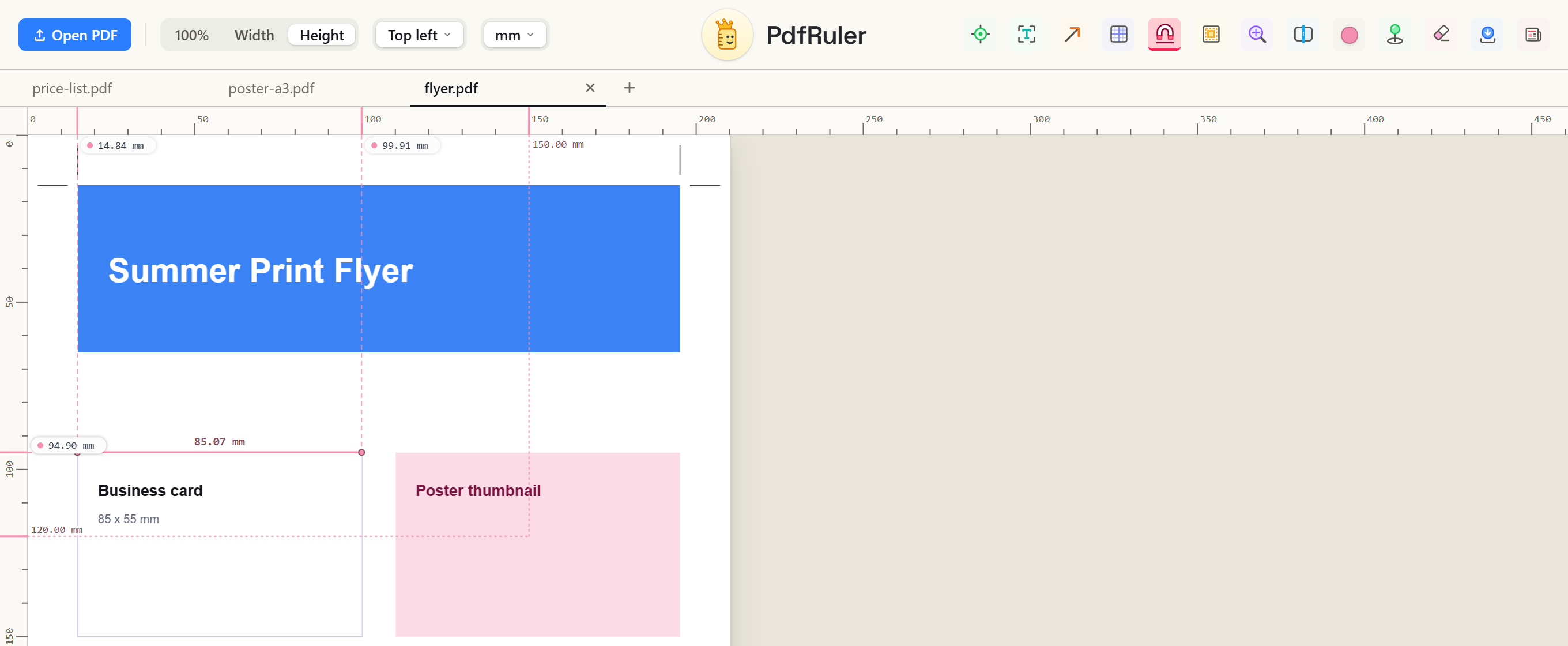
A quick preflight for each tab
- Open the files. Press O (or drop them on the page) once per PDF. Each one opens in a new tab.
- Read the sheet size. The badge in the status bar shows the page in your unit, with the paper name when it matches one (A4, A3, Letter). A flyer that should be A4 but reads 215.9 x 279.4 mm is really Letter. The paper size tables list the exact numbers.
- Check margins and bleed. Turn on page boxes to see the media, bleed and trim boxes the file really declares, and pull guides to test margins. See how to check margins and bleed for what to look for.
- Measure the parts that matter. Auto-measure labels every box on the page, and Pick measures a single box or line with one click.
- Save a marked copy. Press S to save a copy with your measurements drawn on it. Add a note with the text tool or point at a problem with an arrow.
- Close the tab and go to the next file.
Why tabs beat opening files one by one
- You can go back to the first file after seeing the third, with your points and guides still there.
- Your unit and origin stay set, so every file is read the same way.
- Only the tab you are looking at is drawn, so five files do not slow the page down.
If a job has more than five files, finish and close some tabs first. The limit keeps memory use low, because every open PDF is kept in your browser. Use our print-ready checklist to decide what to check on each file.
Frequently asked questions
How do I check several PDFs before sending them to print?
Open each PDF in PdfRuler (up to five at once, each in its own tab), read the sheet size, check margins and bleed with page boxes and guides, then save a marked copy of each.
Do my PDFs get uploaded when I open them in tabs?
No. Every file stays in your browser. Nothing is uploaded, so confidential artwork never leaves your computer.
How many PDFs can I open at once?
Five. Each open PDF is kept in memory, so the limit keeps the page fast. Close a tab to open another.

Free, private, in your browser. No upload. Or check the paper size reference.