How to Compare Two PDFs Side by Side and Measure Both (Free, No Upload)
Checking a proof against its revision, or an original against a reprint? Split view in PdfRuler puts two PDFs side by side. Each side is a full, independent workspace with its own rulers, so you measure both at once. Everything runs in your browser and nothing is uploaded.
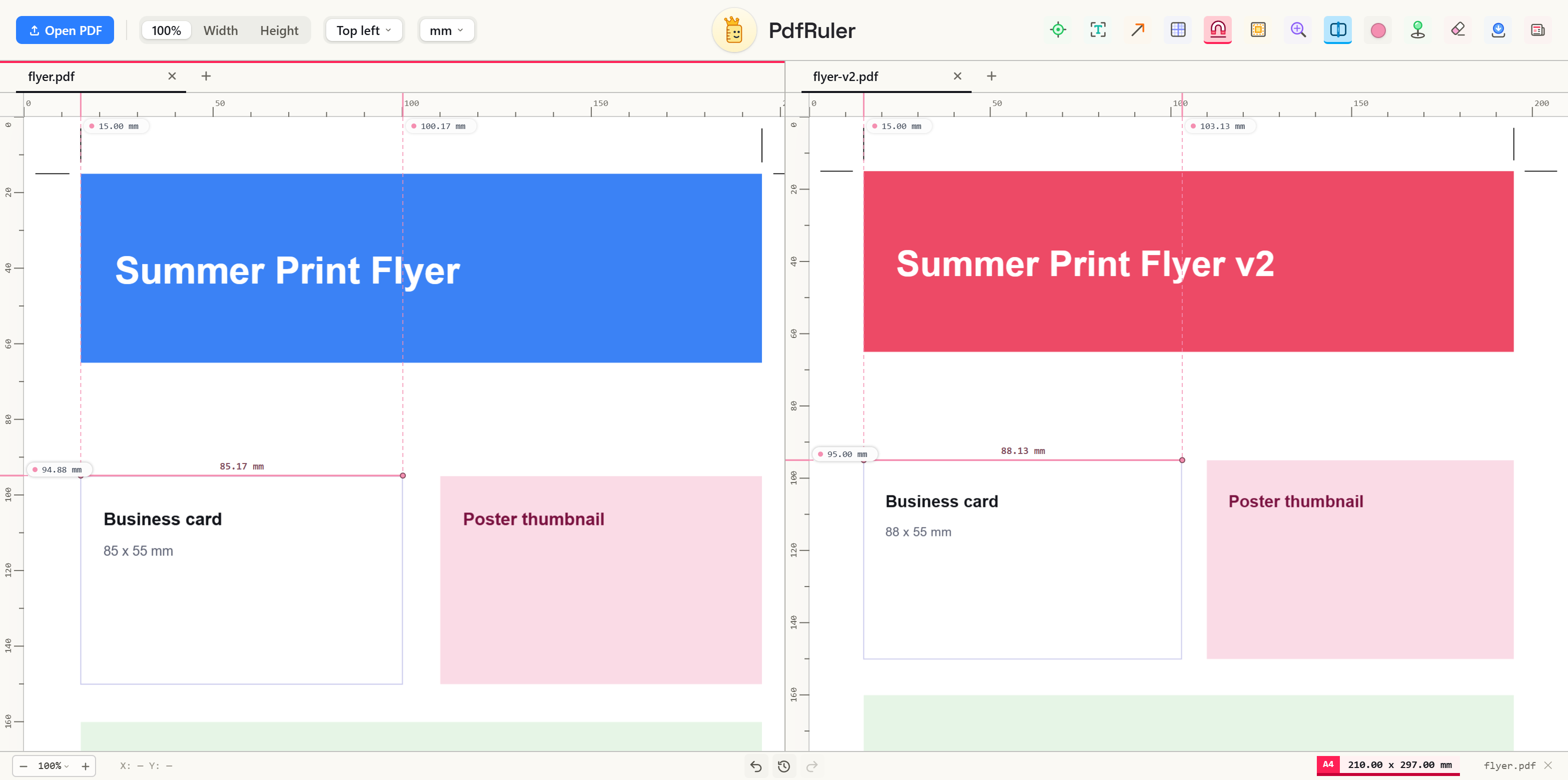
How to open a split view
- Open a PDF at pdfruler.com/app (or press O).
- Click the split icon in the toolbar, or press V. A second pane appears on the right.
- Open the second PDF in it: press O, click Open PDF, or drop a file on the right half. If you already had two PDFs open, the current one moves to the right pane for you.
- Drag the thin divider between the panes to give one side more room.
Each pane works on its own
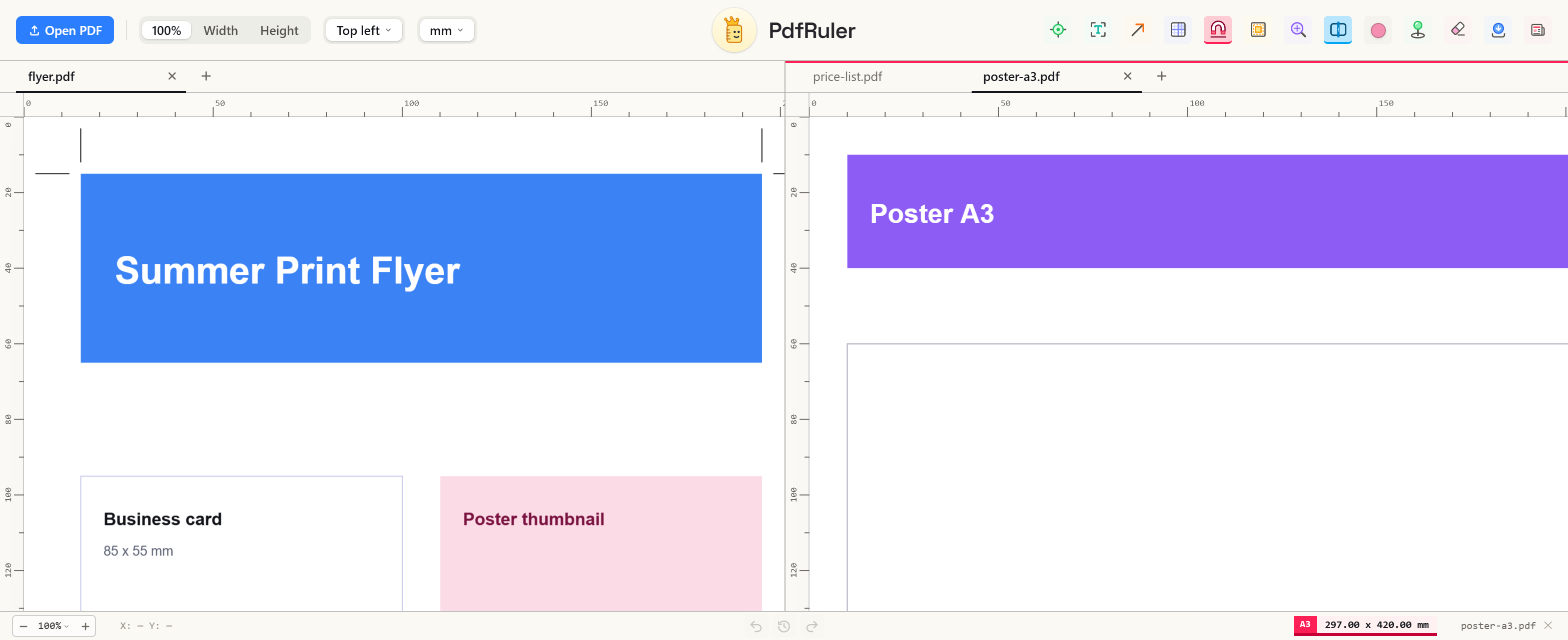
Click a pane to focus it; the focused pane has a rose line on top. The toolbar and status bar then act on that pane: its unit, origin, zoom, points, guides, text, arrows and undo history. Each pane can also hold several PDFs in tabs. Because the rulers belong to the PDF, the same distance reads the same on both sides even at different zoom levels.
Good to know
- The two panes share the limit of five open PDFs, because each file is kept in memory.
- Turn split view off with the same button or V: the right-hand PDFs come back as tabs and the PDF you were working on stays on screen.
- Split view needs room, so the button is hidden on narrow screens.
Comparing a proof with its revision? See how to compare two versions of a PDF and measure what changed.
Frequently asked questions
Can I view two PDFs side by side?
Yes. Press V or click the split icon in PdfRuler to show two PDFs next to each other, each with its own rulers, zoom and measurements.
Do the two PDFs scroll and zoom together?
No. Each pane is fully independent. Click a pane to focus it, and the toolbar and zoom controls then act on that one.
Is anything uploaded when I compare two PDFs?
No. Both files stay in your browser, which is also why up to five PDFs can be open at once across both panes.

Free, private, in your browser. No upload. Or check the paper size reference.