PDF Print-Ready Checklist: 8 Things to Measure Before You Send the File
Most printing problems are measurable before the file leaves your computer. Work down this list in PdfRuler with the unit set to mm.
The checklist
- Page size. Does the bottom-right readout match the order? See is it really A4.
- Orientation. Width less than height is portrait; check it matches the layout.
- Bleed. The page is trim size plus bleed (usually 3 mm per side). Read what bleed is.
- Safe zone. Drag guides 3 to 5 mm inside the trim and check nothing important crosses them.
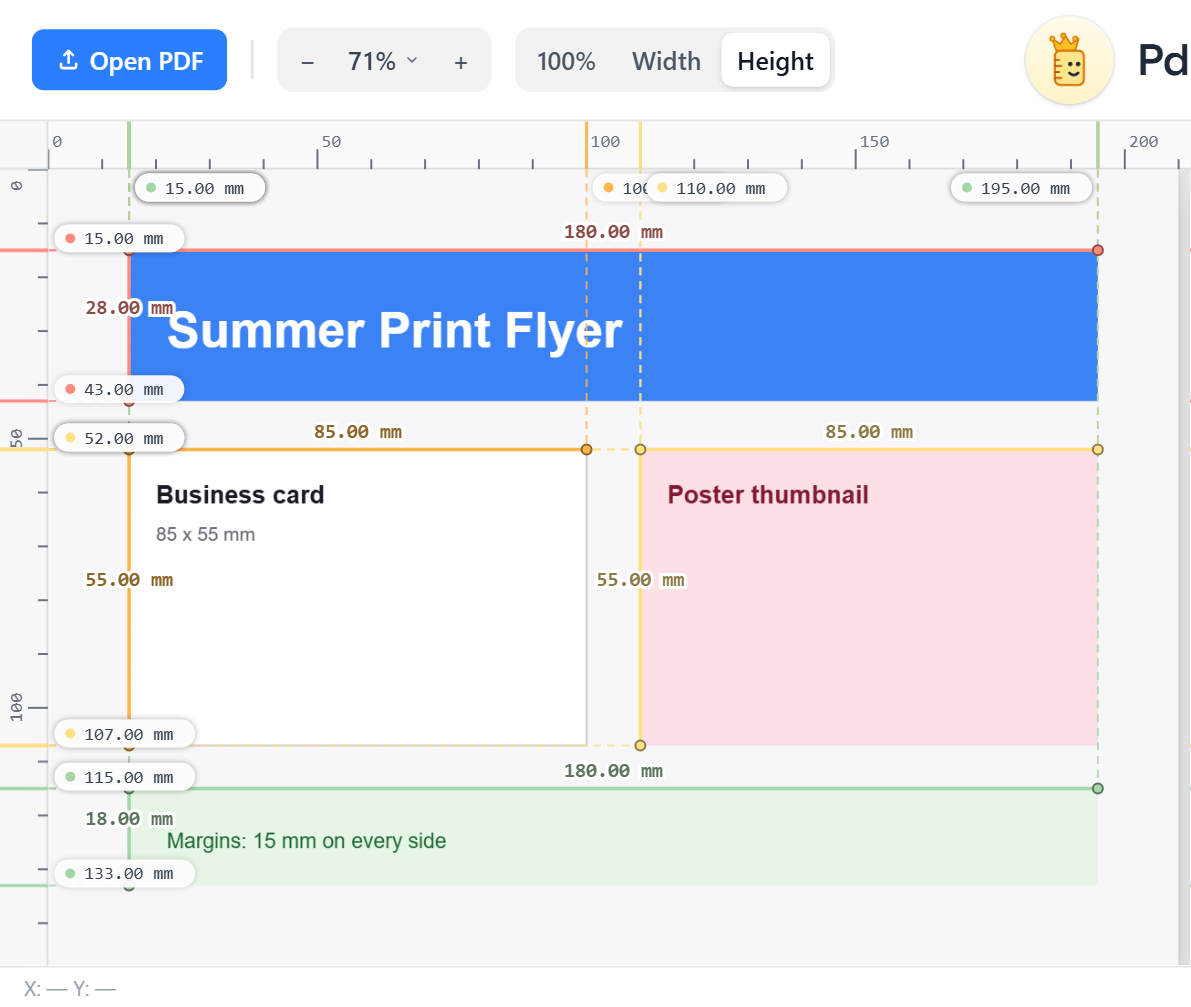
- Margins. Equal where they should be: measure left against right, top against bottom.
- Crop marks. Present, outside the bleed, trim size matches. See checking crop marks.
- Key distances. Logo height, QR code size (keep it large enough to scan) and gutter widths, with points.
- Proof. Save a copy with measurements drawn on it for sign-off.
Speed it up
- Press A for auto-measure to review every box at once.
- Turn on the grid to eyeball alignment, shown in the label guide.
- Use Ctrl + scroll to inspect details at up to 500%.
Still unsure?
Ask your printer for their file spec, then measure against it. The numbers matter more than how the page looks on screen. Overview of margin checks in margins and bleed before printing.
Frequently asked questions
What should I check before sending a PDF to print?
Page size, orientation, bleed, safe zone, margins, crop marks and key distances. PdfRuler measures all of them in mm, cm or inches.
How do I send proof of my measurements?
Use Save to download a copy with your points, lines and guides drawn on it.
How big should a QR code be in print?
A common minimum is about 20 x 20 mm; measure yours with two points to check.
